 Version 1.0.1 Installed
Your Debugging
Superpower
Welcome to the ultimate Salesforce log analyzer. We've combined deep insights, real-time debugging, and intuitive visualization into one seamless experience.
Everything You Can Do
A complete toolkit designed to replace the legacy Developer Console.
Deep Log Analysis
- Health Score: Instant 0-100 quality rating.
- Patterns: Finds SOQL in loops & more.
- Recursion: Visual call depth tracking.
Advanced Debugging
- Trace Flags: Create & renew in-app.
- Live Tailing: Auto-fetch new logs every 5s.
- Connect: Link to active session instantly.
Smart Dashboard
- Filtering: Advanced SOQL-like queries.
- Gov Limits: Visual usage progress bars.
- Compare: Side-by-side log diff view.
Never miss a critical error again.
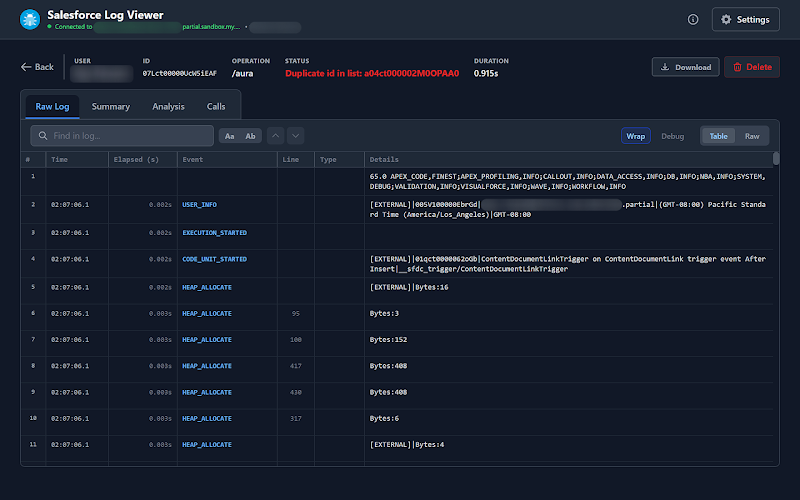
Our intelligent parser scans every log file instantly. It highlights critical errors in red, warns you about performance anti-patterns (like SOQL in loops), and gives you a 0-100 Health Score so you know exactly where to focus.
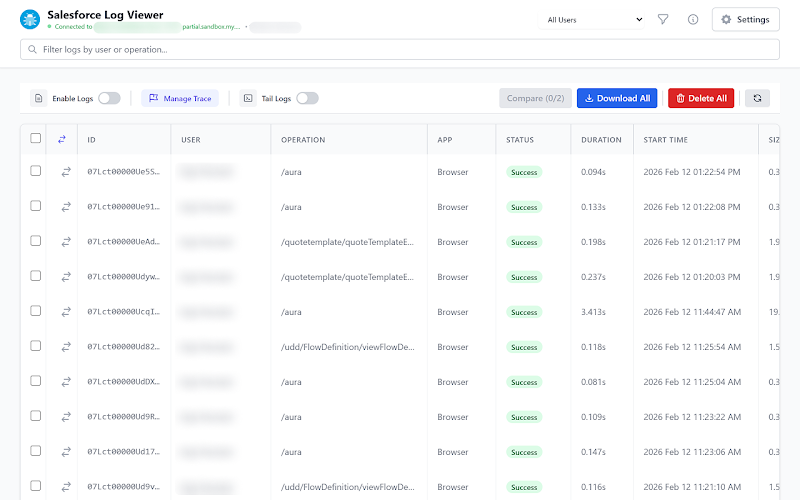
See your code execution in a timeline.
Stop reading flat text files. The Timeline View renders your transaction as a Gantt chart, allowing you to visually identify long-running methods, database locks, and external callout bottlenecks at a glance.
Manage Trace Flags without context switching.
Forget navigating to Setup > Debug Logs. Create, renew, and delete User Trace Flags directly from the extension. Use our "Quick Presets" to instantly switch between "Fine" and "Debug" levels.
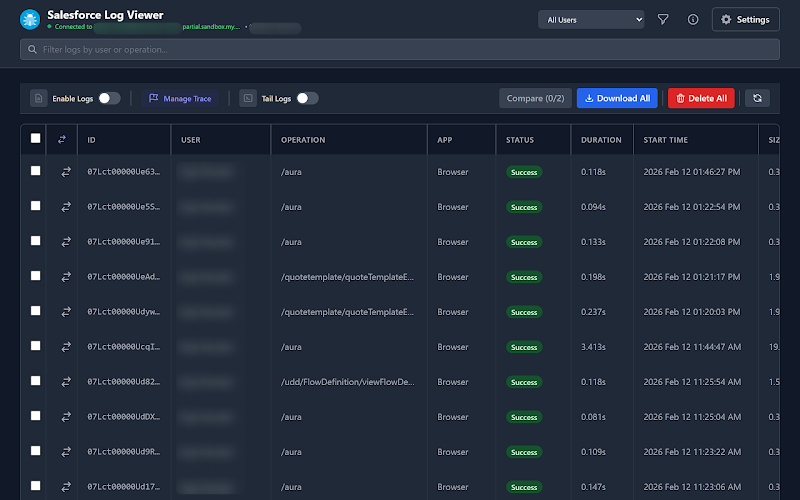
Button & Icon Reference
A quick guide to the tools available in your toolbar.
| Icon / Button | Name | Description & Function |
|---|---|---|
| Filter Icon | Opens the Advanced Filter input. Allows you to write SOQL WHERE clauses to filter logs (e.g., DurationMilliseconds > 1000). |
|
| Settings Icon | Opens the Settings Panel. Toggle Dark Mode, set "Logs per Page", change time units to ms/sec, and enable "Auto-Start Debugging". | |
| Compare/Switch | Located in the Log List (Column 2). Click this on two different logs to select them. A "Compare" button will then appear at the top. | |
| Download | Located in the 'Actions' column. Downloads the raw log file to your computer. | |
| Trash/Delete | Instantly deletes the log record. There is no undo, so use carefully! | |
| Column Menu | Hover over any column header to see this icon. Click it to Sort, Hide, or Manage columns. | |
|
Logs
|
Logs Toggle | The main switch to "Start/Stop" log capture. When on, it ensures a Trace Flag is active for your user. |
Found this Helpful? DONATE any amount to see more useful Content. Scan below QR code using any UPI App!
Verify that you are Paying "Abhishek" before making the transaction. It makes my Day 😃